

Your First Mobile App
Run your Wails app on iOS Simulator or Android Emulator in minutes
This guide takes a standard Wails desktop app and runs it on iOS Simulator or Android Emulator. You do not need to change your Go code. The same main.go builds for all targets.
Time to complete: 15–30 minutes (most of that is toolchain installation on first run)
Start from a desktop project
If you don’t have one yet, create a fresh project:
wails3 init -n mymobileapp
cd mymobileapp
Confirm the desktop app works first:
wails3 dev
Once it opens, quit and move on. Everything that runs on desktop also runs on mobile — you won’t need to touch main.go or any Go code for this guide.
Choose your platform
Requirements
-
macOS (iOS builds are macOS-only)
-
Full Xcode — not just command-line tools. Install from the App Store, then:
bashsudo xcode-select -s /Applications/Xcode.app/Contents/Developer sudo xcodebuild -license accept -
Go 1.25+ and npm (already installed if you ran
wails3 init)
Run wails3 doctor to verify — it lists the iOS SDKs it can find.
Run on the Simulator
Launch the app
wails3 task ios:run
That’s it — this builds your app, boots a simulator if one isn’t already running, and launches it.
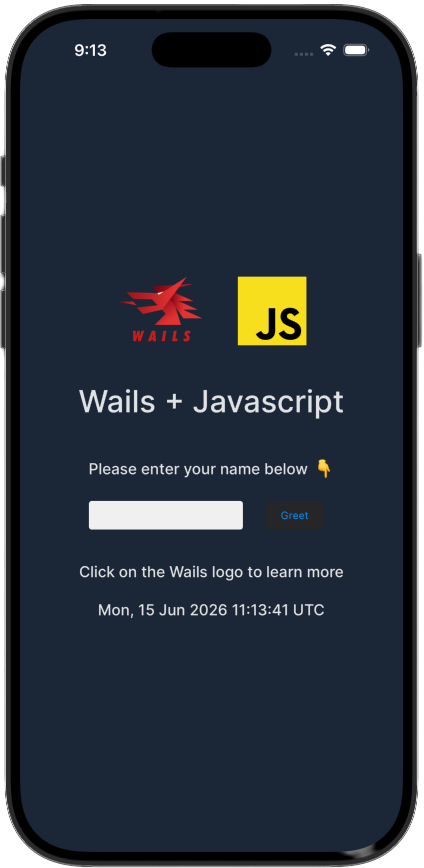
When it launches, your unmodified desktop app is running on the iOS Simulator — same main.go, same frontend:
Stream logs
In a separate terminal:
wails3 task ios:logs:dev
This tails the simulator log, filtered to your app. fmt.Println and log.Println output appears here.
Inspect the WebView
In Safari: Develop → Simulator → your app. The full Web Inspector works — console, debugger, network panel, everything.
Make a change
Edit any frontend file (frontend/src/main.js, index.html, etc.) and re-run wails3 task ios:run. Wails rebuilds the frontend and relaunches the app.
For Go changes: also re-run wails3 task ios:run. Go recompilation is incremental, so only changed packages rebuild.
Open in Xcode (optional)
wails3 task ios:xcode
This opens build/ios/ in Xcode. You can use Xcode for device deployment, advanced profiling, or managing provisioning profiles. Wails regenerates the Xcode project on each build, so don’t modify the generated files directly.
Requirements
You need the Android SDK, NDK, and a JDK. The easiest way is Android Studio, or the command-line tools:
Install the Android command-line tools
Download from developer.android.com/studio#command-line-tools-only, unzip to ~/android-sdk/cmdline-tools/latest/.
Install SDK components
sdkmanager "platform-tools" \
           "platforms;android-35" \
           "build-tools;35.0.0" \
           "ndk;26.3.11579264" \
           "emulator" \
           "system-images;android-35;google_apis;arm64-v8a"
Create an emulator
avdmanager create avd \
  --name wails \
  --package "system-images;android-35;google_apis;arm64-v8a" \
  --device pixel_7
Set environment variables
Add to ~/.zshrc or ~/.bashrc:
export ANDROID_HOME=~/android-sdk
export ANDROID_SDK_ROOT=~/android-sdk
export PATH=$PATH:$ANDROID_HOME/platform-tools:$ANDROID_HOME/cmdline-tools/latest/bin
Reload: source ~/.zshrc
Install a JDK
# macOS
brew install openjdk@21
export JAVA_HOME=$(brew --prefix openjdk@21)

# Ubuntu/Debian
sudo apt install openjdk-21-jdk
export JAVA_HOME=/usr/lib/jvm/java-21-openjdk-amd64

# Windows (scoop)
scoop install openjdk21
Run wails3 doctor to confirm everything is found.
Run on the Emulator
Launch the app
wails3 task android:run
On first run this:
- Boots the emulator if none is running
- Generates bindings and builds the frontend
- Compiles your Go code to
libwails.sovia the NDK cross-compiler - Assembles a debug APK with Gradle
- Installs and launches it on the emulator
Stream logs
In a separate terminal:
wails3 task android:logs
This runs adb logcat filtered to your app. fmt.Println output appears here.
Inspect the WebView
Open Chrome and navigate to chrome://inspect. Your app’s WebView appears under Remote Target — click inspect to open DevTools.
Make a change
Edit any file and re-run wails3 task android:run. Gradle’s incremental build means only changed code recompiles.
Understanding what happened
Your main.go didn’t change at all. Wails handled everything:
- Build system —
Taskfile.ymlin your project containsios:*andandroid:*tasks that drive the platform-specific toolchain. - Go cross-compilation —
GOOS=iosorGOOS=androidwith the appropriateGOARCHand sysroot. - Native host — a generated Xcode project (iOS) or Gradle project (Android) that embeds your compiled Go code and hosts the WebView.
- Asset serving — your
frontend/dist/is embedded in the Go binary and served in-process. No localhost server is needed.
Make your app mobile-aware
Your app already works, but it looks like a desktop app on a phone screen. A few small changes make a big difference.
Responsive CSS
Mobile screens are narrower and use different input patterns. In frontend/public/style.css (or equivalent):
/* Prevent horizontal scrolling */
body {
  overflow-x: hidden;
}

/* Touch-friendly tap targets */
button {
  min-height: 44px;
  min-width: 44px;
}

/* Respect the iOS safe area (notch, home indicator) */
body {
  padding-top: env(safe-area-inset-top);
  padding-bottom: env(safe-area-inset-bottom);
  padding-left: env(safe-area-inset-left);
  padding-right: env(safe-area-inset-right);
}
Detect the platform in Go
Use build tags to add platform-specific behaviour without cluttering shared code.
Create mobile_ios.go for iOS-only code:
//go:build ios

package main

import "github.com/wailsapp/wails/v3/pkg/application"

func platformOptions() application.IOSOptions {
    return application.IOSOptions{
        DisableBounce: true,
    }
}
Create mobile_android.go for Android-only code:
//go:build android

package main

import "github.com/wailsapp/wails/v3/pkg/application"

func platformOptions() application.AndroidOptions {
    return application.AndroidOptions{}
}
Create mobile_desktop.go as a stub so the shared code compiles on desktop too:
//go:build !ios && !android

package main

type mobileOptions struct{}

func platformOptions() mobileOptions { return mobileOptions{} }
Detect the platform in JavaScript and gate mobile-only UI
The IOS.* and Android.* runtime objects only exist on their respective platforms. Calling them on desktop throws. The right pattern — used by the Kitchen Sink — is to detect the platform once and hide mobile-only controls entirely:
// Detect platform from the bridge the host injects into the WebView
const platform = (() => {
  if (typeof window.wails?.platform === 'function') return window.wails.platform(); // Android
  if (window.webkit?.messageHandlers?.external) return 'ios';
  return 'desktop';
})();

const isIOS     = platform === 'ios';
const isAndroid = platform === 'android';
const isMobile  = isIOS || isAndroid;

// Hide any element marked as mobile-only
document.querySelectorAll('.mobile-only').forEach(el => {
  el.style.display = isMobile ? '' : 'none';
});
Then in your HTML:
<section class="mobile-only">
  <button id="btnHaptic">Haptic feedback</button>
</section>
This way mobile-only buttons are never rendered on desktop, and you never need to guard every individual call with an if (isMobile) check.
On the Go side, pair this with a build-tag stub so the event handlers are only registered on the platforms that need them:
//go:build !ios && !android

package main

import "github.com/wailsapp/wails/v3/pkg/application"

// No-op on desktop — mobile tabs are hidden in the frontend so these
// events are never emitted.
func registerNativeFeatures(app *application.App) {}//go:build ios
package main
import "github.com/wailsapp/wails/v3/pkg/application"
func registerNativeFeatures(app *application.App) {
app.Event.On("common:haptic", func(e *application.CustomEvent) {
// only compiled and called on iOS
application.IOS.Haptic("medium")
})
// ... other handlers
}This is the exact pattern the Kitchen Sink uses — see native_features_stub.go, native_features_ios.go, and native_features_android.go.
Add haptic feedback (iOS)
import { IOS } from '@wailsio/runtime';

async function onButtonTap() {
  if (isIOS) {
    await IOS.Haptics.Impact({ style: 'medium' });
  }
  // ... rest of your handler
}
Add vibration (Android)
import { Android } from '@wailsio/runtime';

async function onButtonTap() {
  if (isAndroid) {
    await Android.Haptics.Vibrate(50); // 50ms
  }
}
Build for production
Simulator build (for testing on simulator, no signing needed):
wails3 task ios:package
wails3 task ios:deploy-simulator
Device build (requires a signing identity and provisioning profile):
wails3 task ios:package \
  IOS_PLATFORM=device \
  CODESIGN_IDENTITY="Apple Development: You (TEAMID)" \
  PROVISIONING_PROFILE=path/to/profile.mobileprovision

wails3 task ios:deploy-device   # installs via xcrun devicectl
Distribution IPA (for App Store or TestFlight):
wails3 task ios:package:ipa IOS_PLATFORM=device \
  CODESIGN_IDENTITY="..." \
  PROVISIONING_PROFILE=path/to/distribution.mobileprovision
Debug APK (signed with the Android debug keystore, installs directly):
wails3 task android:package
wails3 task android:deploy-emulator
Release APK (signed with your own keystore):
ANDROID_KEYSTORE_FILE=/path/to/release.jks \
ANDROID_KEYSTORE_PASSWORD=yourpassword \
ANDROID_KEY_ALIAS=youralias \
ANDROID_KEY_PASSWORD=yourkeypassword \
  wails3 task android:package
Universal APK (arm64 + x86_64 in one file):
wails3 task android:package:fat
Troubleshooting
wails3 task ios:run fails with “no iOS SDKs found”
Full Xcode must be installed and selected:
sudo xcode-select -s /Applications/Xcode.app/Contents/Developer
xcode-select -p  # should print the Xcode path
wails3 task android:run fails with “SDK not found”
Ensure ANDROID_HOME is set and exported. Verify with:
echo $ANDROID_HOME
ls $ANDROID_HOME/platform-tools/adb
Simulator doesn’t boot
List available simulators and boot one manually:
xcrun simctl list devices available
xcrun simctl boot "iPhone 16"
chrome://inspect shows no targets
The WebView must be in debug mode (the default for android:run). Make sure you’re running a debug build, not a production one. Also confirm adb devices shows the emulator as connected.
Safe area insets not applied
Make sure your HTML includes the viewport meta tag:
<meta name="viewport" content="width=device-width, initial-scale=1, viewport-fit=cover">Explore the Kitchen Sink
Once your first app is running, the Kitchen Sink example is the fastest way to learn what else is possible. It’s a complete Wails app that runs on iOS, Android and desktop from a single codebase, covering haptics, geolocation, biometrics, local notifications, secure storage, and more:
git clone https://github.com/wailsapp/wails.git
cd wails/v3/examples/mobile

wails3 task ios:run        # iOS Simulator
wails3 task android:run    # Android Emulator
wails3 task run            # Desktop
Browse the source at v3/examples/mobile — the native_features_ios.go and native_features_android.go files are particularly useful as copy-paste starting points for platform-specific features.
What’s next
Full reference: configuration options, native tabs, WKWebView toggles, device builds, signing.
Full reference: configuration, toasts, Play Store packaging, NDK details.
Haptics, geolocation, biometrics, notifications, secure storage — all in one runnable app.